IPTV Buffering 2026: Find the Real Cause and Fix It
IPTV buffering? A systematic diagnosis that separates channel, device, Wi-Fi, connection and service faults — so you fix the right thing.
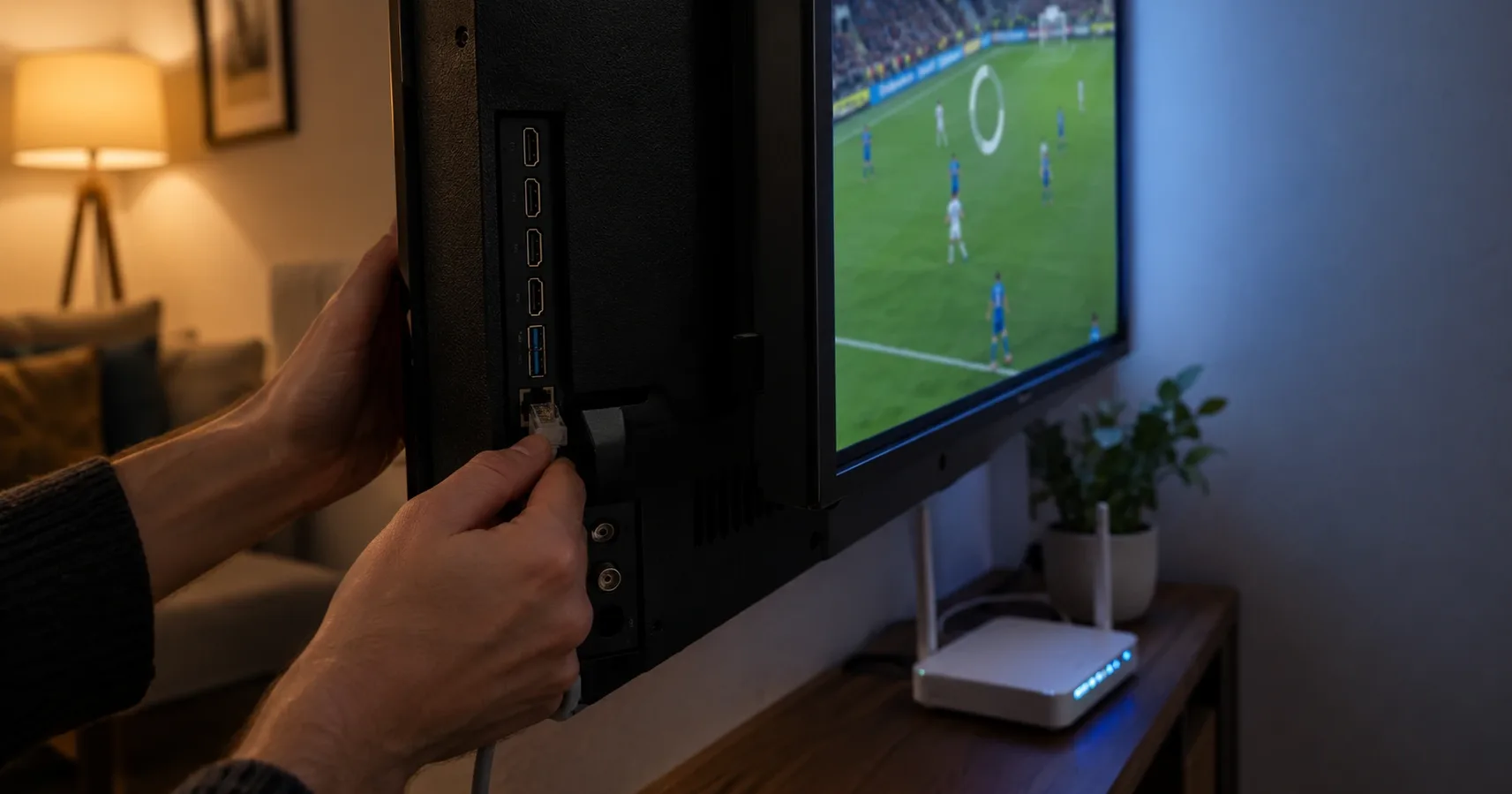
IPTV buffers, the picture freezes mid-match, and a spinning circle appears. It is the most frustrating fault in streaming, and it is almost always fixed from the wrong end: people switch provider when the problem was the Wi-Fi signal in the living room, or reconfigure the router when the problem was one channel.
This guide works the other way round. First what buffering actually is, then five steps that separate four completely different faults from each other. Each step rules one out, and most problems are solved by step three. Information checked 28 October 2026.
What buffering actually means
A buffer is a small store. The player downloads a few seconds of video into memory ahead of time and plays that to the screen while the next piece downloads. As long as new data arrives at least as fast as it is consumed, you never know the buffer exists.
The spinning circle means one thing: the buffer ran empty. Data did not arrive fast enough, the store ran out, and the player stops to refill it.
From this follows the insight that drives the rest of this article. Buffering is not one fault but a symptom with four completely different causes. Data can fail to arrive because the source is not sending it, because your home network is not carrying it, because your broadband line cannot sustain it, or because your device cannot decode it fast enough. These four have nothing to do with each other, and each needs a different fix.
So "what fixes buffering" is the wrong question. The right one is: which of these four is it in my case?
Speed and consistency are different things
Speed is how much data fits through the pipe per second. Consistency is whether the same amount arrives every second.
Streaming cares far more about consistency. A 100 Mbit/s line that dips to 2 Mbit/s once a minute buffers once a minute — even though the average looks excellent in a test. A steady 30 Mbit/s line never buffers at all.
This explains the most common confusion in the whole subject: "the speed test says 300 Mbit/s, so why does the picture stutter?" A speed test measures peak throughput over a few seconds. It says nothing about what happens across a two-hour football match.
Why the picture sometimes softens instead of stopping
Many broadcasts are offered in several quality versions at once. The player watches how fast data is arriving and drops to a lighter version when it needs to. The picture softens for a moment, but playback continues without interruption.
This matters in diagnosis, because softening and stuttering are two stages of the same problem. Softening means the connection is not enough for the best quality but is enough for something. Stuttering means it is no longer enough even for the lowest version — or that no lighter version exists.
The practical consequence: if you notice the sharpness fluctuating mid-programme, you are already at the edge of your available bandwidth, even if no spinning circle has appeared yet. That is an early warning, and steps 3 and 4 are worth doing before it gets worse.
Not every broadcast is offered in multiple versions, though. Live events, especially sport, often run as a single fixed quality, because producing several versions in real time costs money. That is exactly why live sport stutters when films merely soften for a moment: a film has a relief valve, a match does not.
When it buffers: immediately, or mid-programme?
One observation narrows the possibilities more than anything else, and it is free: when does the buffering happen?
Immediately after a channel change, then stable. This is normal and usually not a fault at all. The player is filling an empty buffer from scratch, and a few seconds of loading on a channel change is part of the design. If loading takes more than ten seconds every single time, you have slow connection setup — and there the device is worth checking before the bandwidth.
Stable at first, then stuttering after a few minutes. The classic bandwidth problem. The buffer filled at the start, but data is arriving slightly slower than it is consumed, so the store drains gradually. Steps 3 and 4.
Stuttering at regular intervals. A repeating, even rhythm points to interference rather than capacity: a neighbour's device on the same Wi-Fi channel, an automatic backup, or a scheduled router task. Step 3.
Stuttering at random with no pattern. Typically wireless interference or an erratic mobile connection.
Write down which one you see before continuing — it points straight at the right step.
Three minutes: which of the four faults is it?
Before adjusting anything, do this. It takes three minutes and often saves an hour.
| Observation | What it tells you | Go to |
|---|---|---|
| Only one channel stutters | The source is struggling; your network is fine | Step 1 |
| Everything stutters on one device, others are fine | Device fault | Step 2 |
| Everything stutters on every device, but only wirelessly | Wi-Fi | Step 3 |
| It stutters over an Ethernet cable too | Broadband line or service | Steps 4 and 5 |
| It only stutters in the evening | Capacity and congestion | Step 4 |
Write the observation down. The biggest mistake in fault-finding is changing three things at once, after which you no longer know which one helped — and therefore still do not know what was wrong.
Step 1 — One channel or all of them?
Open three channels from different categories and watch each for a couple of minutes. Include one HD channel and one demanding broadcast, such as live sport.
If only one stutters, the fault is not yours. Every channel is its own source at its own bitrate, and a single source can congest independently of all the others. There is nothing to change at home. Report the channel name and the time to support and it gets checked at the source.
If all of them stutter, the problem sits between you and the source. Continue to step 2.
It is worth noting something about how channels work here: a line-up is not a fixed product but the outcome of contracts, and the quality of an individual channel can vary with its source. We covered that separately in our article on channel line-ups.
Step 2 — The device before the network
Smart TVs are computers that are never switched off. Their memory fills up over days and weeks of use, and the streaming app is the first thing to suffer.
Do this in order:
- Close other apps. A browser or a second streaming app left in the background eats memory and bandwidth.
- Cut the power completely. Not standby — unplug it for thirty seconds. Standby does not clear memory.
- Check the app version. An old player build can be incompatible with the server.
- Try another device. A phone on mobile data is ideal here, because it bypasses your home network entirely.
That last point is the most important in the whole step. If the same channel plays flawlessly on a phone using mobile data, the service and the source are fine and the fault is in your home. That is an enormous narrowing: two of the four possibilities drop away in one test.
When the device itself is the bottleneck
Some hardware simply cannot keep up. An older smart TV, a cheap Android box or a streaming stick from a few years ago can be too slow to decode 4K even on a perfect network. The symptom is recognisable: stuttering is constant regardless of the time of day, and HD works where 4K does not.
Device choice, and when a separate box is worth it and when it is not, has its own article in IPTV without a box, and the differences between boxes are compared in the IPTV box guide. The full compatibility list is on the devices page.
Step 3 — Wi-Fi is almost always the culprit
If the fault is in your home, it is most likely in the wireless network. This is the single most important step, and it is why so many people change provider for no reason.
The speed your operator promises is measured at the point where fibre or cable enters the building. It promises nothing about what happens on the living-room sofa. The journey from router to sofa can lose most of that speed.
2.4 GHz versus 5 GHz
Most routers broadcast two networks, and they are built for very different purposes.
| 2.4 GHz | 5 GHz | |
|---|---|---|
| Range | Long, passes through walls | Shorter, walls attenuate it |
| Speed | Low | Substantially higher |
| Congestion | Heavily congested | Comparatively clear |
| Suits | IoT devices, distant rooms | Streaming |
The 2.4 GHz band is full. Neighbouring networks, microwave ovens, Bluetooth devices and wireless headphones all share it. In a block of flats there can be dozens of networks on one channel.
If your TV is on the 2.4 GHz network, move it to 5 GHz. The two usually appear under different names, the second with a suffix such as -5G. This single change fixes buffering more often than anything else in this article.
What else weakens the signal
- Walls. Concrete, and especially bathroom walls, attenuate heavily. Two concrete walls is enough to make a 5 GHz connection unusable.
- Distance. The signal falls away quickly. A router in a hallway cupboard and a TV at the far end of the living room is a poor combination.
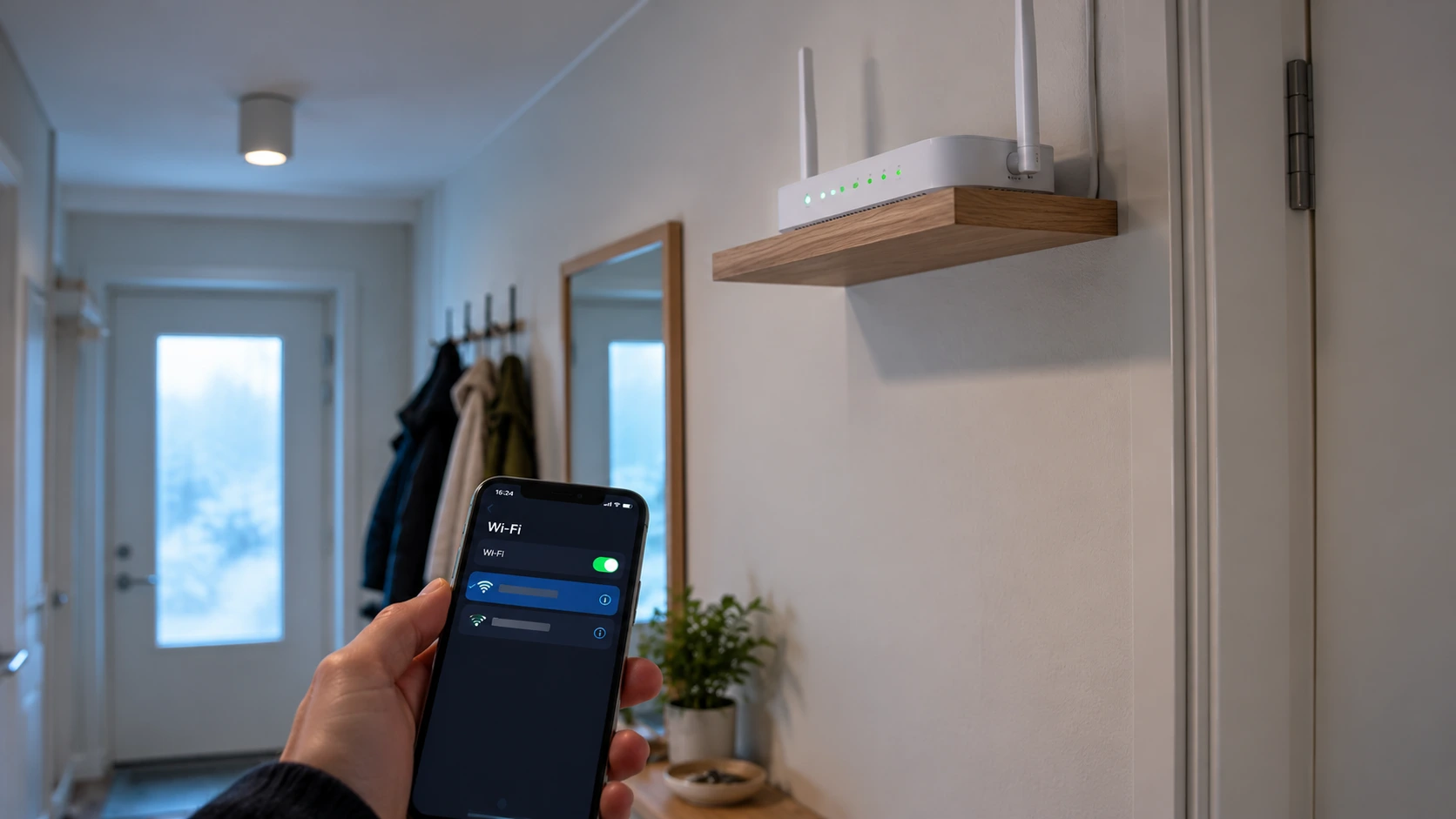
- Router placement. On the floor, in a cabinet or behind the TV all work badly. As high and as open as possible is the rule.
- Number of devices. Every simultaneous device shares the same wireless capacity.
Ethernet settles the question for good
A network cable is not old-fashioned; it is the fastest route to certainty. Connect the TV or box directly to the router with a cable and watch the same channel again.
- Stuttering stopped → the fault was Wi-Fi. Either leave the cable in place or fix the wireless network.
- Stuttering continues → the wireless part of your home network was not the cause. Continue to step 4.
Either result is useful, because either one removes the uncertainty. If running a cable is impossible, read the next section before buying anything.
Mesh, powerline and repeaters — which solves what
All three are sold on the same promise, but they solve different problems. The wrong choice helps not at all.
| Solution | For which problem | Caveat |
|---|---|---|
| Mesh system | A large or multi-storey home where the signal does not reach | Works best when the nodes can be linked to each other by cable |
| Powerline adapter | One distant room you cannot cable | Runs over mains wiring; separate circuits degrade it badly |
| Wi-Fi repeater | A small dead spot near existing coverage | Typically halves throughput — the worst option for streaming |
A repeater is the most common and usually the worst choice here. A traditional repeater receives and retransmits the same signal on the same radio, which cuts available bandwidth roughly in half. If the TV previously got 20 Mbit/s, through a repeater it gets ten.
Powerline works well when it works, but the result depends on the building's electrical wiring and cannot be predicted in advance. Within one circuit in a flat it is often excellent; between circuits in an older house it can be unusable.
Mesh is the most expensive and the most reliable, but its real benefit arrives only when the nodes can be wired to each other. A mesh whose nodes talk only wirelessly suffers the same halving as a repeater, if less severely.
Step 4 — Measure the connection properly
You now know the fault is not one channel, not the device and not Wi-Fi. Next, measure the line itself — and how you measure matters.
Finland has an official tool for this. Bittimittari.fi is a free measurement service run by Traficom, the Finnish Transport and Communications Agency, and it assesses connection quality as well as speed. It works in a browser and as an app.
Why that one rather than any speed test? Because Traficom uses the same data in its own supervisory work. If you end up complaining to your operator, a measurement from the regulator's own service carries more weight than a result from a random test site.
How to measure so the result means something
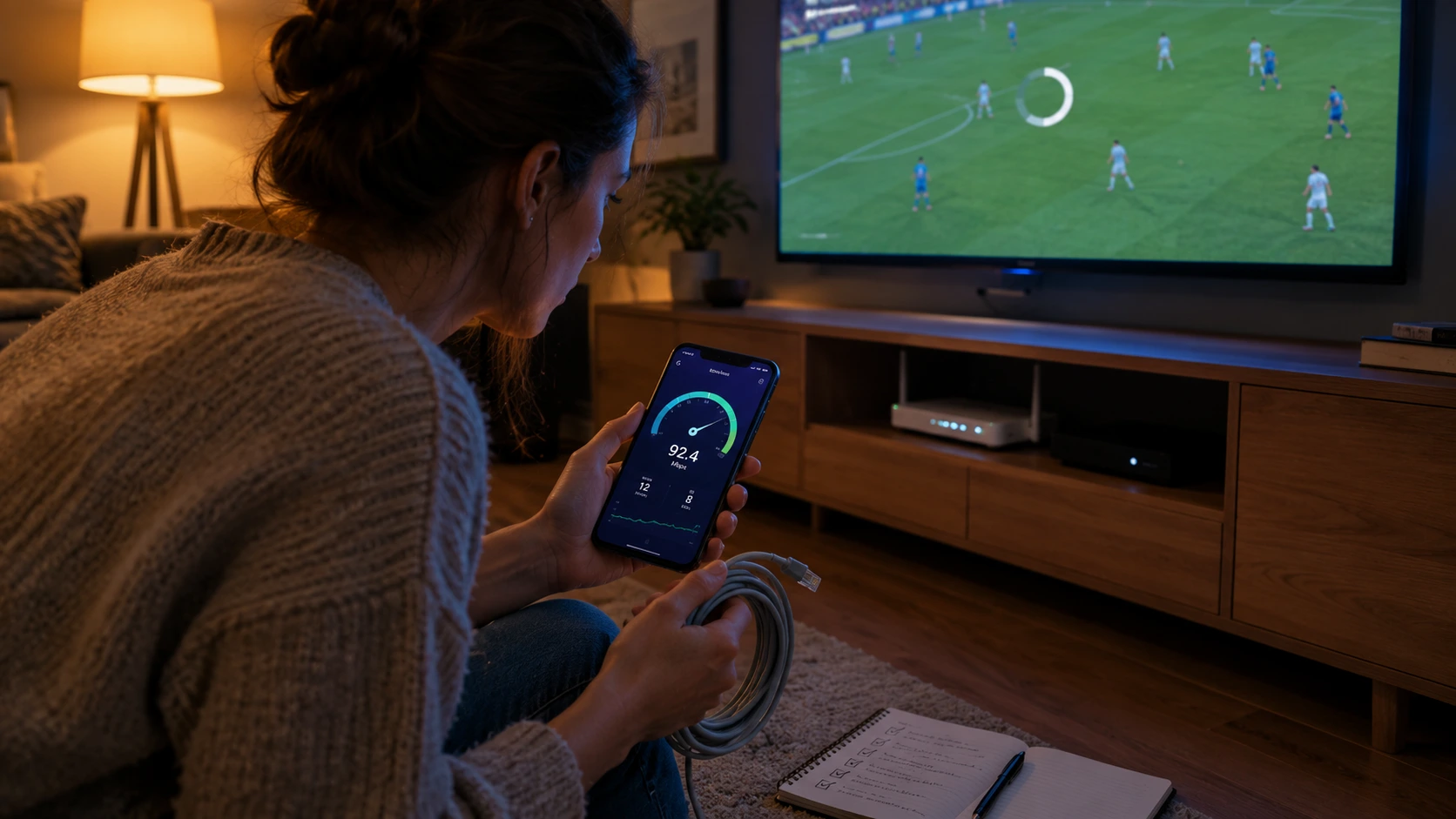
- Measure over Ethernet. A wireless measurement measures Wi-Fi, not your line.
- Measure from where you actually watch. If a cable will not reach, measure wirelessly from that exact spot — but note that the measurement was wireless.
- Measure several times at different times of day. One measurement tells you nothing. Take at least one in the morning and one between 8 and 10 pm.
- Close other devices while measuring.
- Write the results down with dates and times.
What the numbers mean
| Measured speed | What it supports |
|---|---|
| Under 15 Mbit/s | HD may stutter, 4K will not work |
| 15–25 Mbit/s | HD smoothly |
| Over 25 Mbit/s | 4K smoothly |
| Over 50 Mbit/s | Several simultaneous devices |
The recommendation is at least 15 Mbit/s for HD and 25 Mbit/s for smooth 4K. A Finnish fibre or 5G home connection exceeds these comfortably, which is precisely why the line is rarely the real cause — and why step 3 was worth doing first.
The evening is its own test
If a measurement shows 200 Mbit/s in the morning and 12 Mbit/s at eight in the evening, you have found your cause. This is capacity, not your equipment.
A building's shared cable connection is the usual suspect: the headline speed is shared, and at peak hours it is divided among dozens of flats. It is also the one fault type you cannot fix yourself — it needs either action from the operator or a different connection.
Step 5 — When the fault is the line or the service
Step five splits in two depending on what the measurement showed.
If the speed falls short of what you pay for
Your contract specifies a speed. If repeated measurements fall clearly below it, that is a breach of contract rather than bad luck. Traficom's position is that where service quality does not match the contract, a consumer can demand correction or compensation from the operator.
Proceed like this:
- Collect at least five measurements across several days and different times, preferably with Bittimittari over a cable.
- Contact your operator's customer service and present them.
- Ask for a written response.
- If the response is unsatisfactory, consumer advisory services and the Consumer Disputes Board are the next steps.
This is more work than restarting a router, but it is the only route that permanently fixes an underperforming line.
If the line is fine but the picture still stutters
Then you have ruled out everything else, and the fault is on the service side. This is the rarest of the four possibilities, but it exists.
Contact support and say what you have already tested. A good fault report includes the channel name, the time, the device, the connection type (cable or Wi-Fi) and the measured speed. With that, the matter is usually resolved the same day — without it, the investigation starts from the beginning.
Most questions are already answered in the FAQ, and the rest go through the contact page.
How many devices at once?
Simultaneous viewing is its own source of buffering, and it is often missed, because the symptom only appears when somebody else is watching too.
There are two separate limits, and they are different things:
The service's simultaneous connections. Each plan specifies how many devices can watch at the same time — two to five with Nordic IPTV, depending on the plan. Exceeding this limit usually does not show up as buffering but as an error message, or the channel simply not opening.
Your home network's capacity. This does show up as buffering. Three simultaneous HD streams mean three times the bandwidth, and if something is downloading a game update at the same time, it takes what is left.
The distinction is easy to make. If the picture stutters only when other devices are in use, it is your home network. If a channel refuses to open and returns an error, it is the connection count.
Practical advice:
- Check that nothing is downloading updates in the background at viewing time. Games consoles and computers are the worst offenders.
- If two TVs watch simultaneously, connect at least one by cable.
- Simultaneous connections per plan are listed on the pricing page.
A building's shared connection is its own story
A very common arrangement in Finnish blocks of flats is a shared broadband connection procured by the housing company, with the cost included in the monthly maintenance charge. It is inexpensive, and it is also the most common unexplained fault in this article.
If you have recently moved to Finland, this one catches almost everybody: you did not choose this connection, it is not in your name, and you cannot upgrade it yourself.
A shared connection means shared capacity. The headline speed belongs to the whole building, not to your flat. On a quiet morning a single flat may get the full figure; on a weekday evening at eight it shares that figure with dozens of neighbours.
The signs are clear:
- Speed in the morning is several times what it is in the evening.
- The problem started without anything changing in your home.
- Neighbours report the same experience.
- An Ethernet cable makes no difference at all — because the fault is outside the flat.
You cannot fix this with your own equipment. There are three options: take your own parallel connection, raise the matter with the housing company board so the connection gets upgraded, or move to a mobile connection. The last is often fastest, because a 5G home connection can be running within a day and is not tied to the housing company's contract.
If you are considering a switch, measure first — it is worth knowing the shared connection's real evening speed before paying for a second one.
Special cases
Some problems do not fit the pipeline above. These four recur most often.
4K stutters, HD does not. Normal, and it locates the bottleneck fairly precisely. 4K needs several times the bitrate of HD. If HD is stable and 4K is not, either bandwidth is limited or the device cannot decode it. Watch HD for a while and do steps 3 and 4 properly.
It only stutters during live sport. Live sport is the most demanding content there is: fast motion pushes the bitrate to its peak at exactly the moment the audience is largest. If films work and matches do not, this is peak load rather than a broken connection. An Ethernet cable helps here more than anything else.
It stutters on a mobile connection. A 5G home connection is fast but more variable than fibre. Signal strength, cell load and even weather all matter. Move the modem near a window and measure again.
It stutters at the summer cottage but not at home. Almost always capacity. Cottage connections are typically mobile, in areas with sparse coverage. Credentials are not tied to an address, so the service works at a cottage — but the connection still decides the outcome. We cover the differences between the Nordic countries in our Nordic article.
What not to do
Plenty of advice circulates that does not help, or makes things worse.
Do not change provider first. If the fault is a 2.4 GHz network, it will follow you to the next service. Do steps 1–3 first.
Do not install "boosters" or accelerator apps. No app can increase the speed of your line. Apps advertised as speeding up streaming do nothing useful, and some of them harvest data.
Do not change DNS settings because of buffering. DNS affects name lookups, not the transfer rate of video data. It can marginally affect how fast a channel opens; it does nothing for buffering mid-stream.
Do not restart the router daily. If that is necessary, the router is faulty or underpowered. Fix the cause.
Do not use a VPN unless you have to. A VPN adds a hop and encryption. Both lower throughput and raise latency.
Do not change several things at once. One change, one test. Otherwise you will never learn what helped.
Do not fixate on the download figure alone. A speed test's big number is peak throughput in one direction over a few seconds. Latency and its variation matter just as much for streaming, and that is exactly what a quality-aware service like Bittimittari shows. Two equally fast lines can behave completely differently.
Prevention: what to do in advance
Most buffering is avoidable before it starts.
- Connect your main viewing device by Ethernet wherever it is remotely possible. This removes the most common cause in one move.
- Reserve the 5 GHz network for streaming and leave 2.4 GHz for everything else.
- Place the router centrally and high up, not in a cabinet and not behind the TV.
- Replace the router if it is more than five years old. The basic unit an operator supplied years ago is often the bottleneck for the whole home network.
- Test a new service during its trial on your own device and your own connection. That is the only way to know how it performs in your specific home — a demo video or a review cannot tell you. We discuss reviews and how to read them in our article on user experiences.
The fundamentals of how IPTV works in Finland, which devices suit it and what it costs are covered in the IPTV in Finland master guide, and plan contents are on the pricing page.
When the guide is empty but the picture works
One thing is worth separating from buffering entirely. If the picture plays flawlessly but the programme guide is empty, shows the wrong times, or lists yesterday's schedule, this is not a network problem at all.
Video and programme data come from different sources using different mechanisms. The guide can be broken while every channel works perfectly, and the reverse. Nothing described in this article will help. It has its own guide: IPTV EPG not working.
Summary
Buffering is a symptom, not a fault. Four different causes produce the same spinning circle, and the fix depends entirely on which one you have.
The order is always the same:
- One channel or all of them? One channel means the source, and there is nothing for you to do.
- Device. Close apps, power-cycle, try another device.
- Wi-Fi. Move to 5 GHz or plug in a cable. This resolves the majority of cases.
- Measure with Bittimittari, over a cable, at several times of day.
- Complain or contact support depending on what the measurement showed.
The single most important piece of advice is step 3. A Finnish home connection is nearly always sufficient; the journey from router to sofa is not always. A network cable costs a few euros and answers the question for good.
If you have worked through the steps and are still stuck, say what you have already tested — that speeds up the investigation more than anything else. You can also test the service first on your own device and your own connection: activation takes about a minute, nothing is tied to a fixed term, and there is a 7-day money-back guarantee. See the plans and prices or just ask.