IPTV EPG Not Working 2026: Empty Guide or Wrong Times
Empty programme guide, times an hour out, or yesterday's listings? Six different EPG faults, their causes and the fix for each.
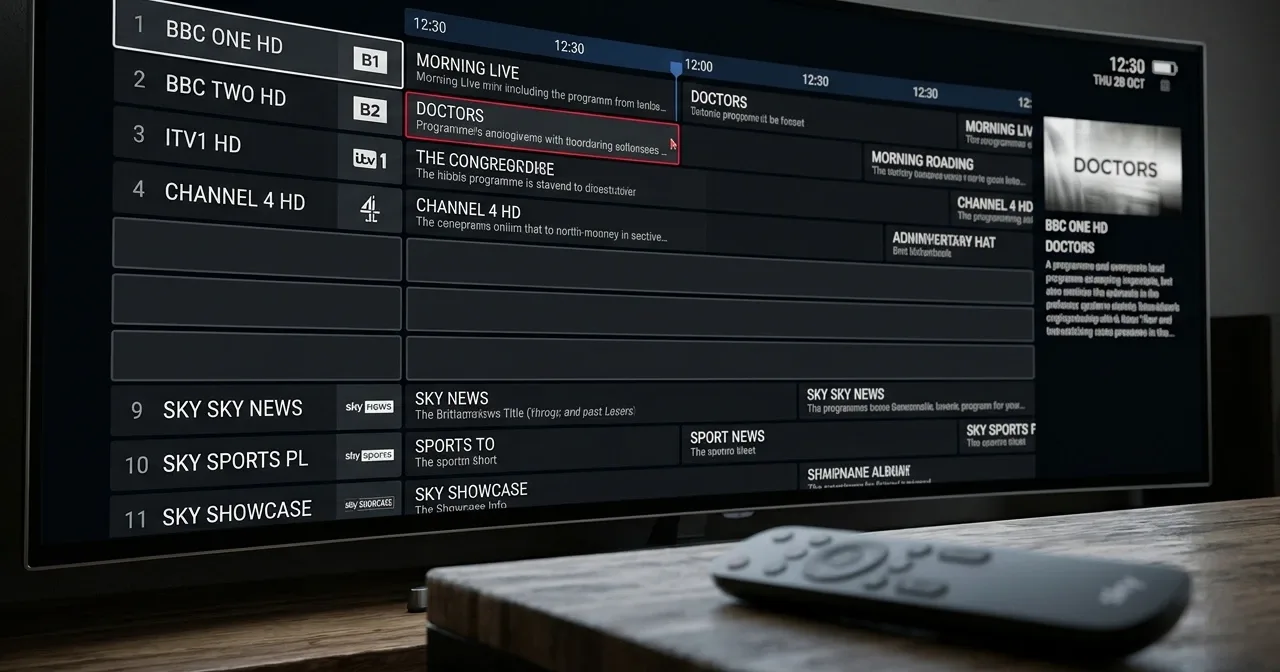
The picture works, the sound works, every channel opens — but the programme guide is empty. Or it shows programmes an hour out. Or it is still listing yesterday.
This is the most common IPTV fault that is not a network fault. Which is precisely why it keeps being fixed the wrong way: people restart the router, change the Wi-Fi channel or start doubting the whole service, when none of that has anything to do with it.
This guide covers where programme data actually comes from and why it can be broken while everything else works. Then it separates six different faults that all look identical on screen but have different causes and different fixes. Information checked 28 October 2026.
What an EPG is and where the data comes from
EPG stands for Electronic Programme Guide. It is the view that tells you what is on now, what is next, and what starts at nine tonight.
The essential point is this: the guide does not arrive with the picture. It is a separate file, fetched from its own address, from its own server, on its own schedule.
In practice the chain runs like this:
- Programme data is collected from broadcasters and listings suppliers.
- It is assembled into a single file, almost always in XMLTV format — an established text-based format, in use since 2002, where every programme has a start time, an end time, a channel identifier and a description.
- The file is published to a server and typically refreshed once or twice a day.
- The player downloads the file, parses it, and matches the programmes to the channels in your channel list.
- The player caches the result so it does not have to download it again every time.
A fault can occur at any of those five points, and the on-screen result often looks the same. Guessing is therefore a poor strategy.
Why the picture works when the guide does not
Video streams from the channel's own source. Programme data is a separate file from an entirely different place. Technically the two have nothing in common once you have logged in.
Two consequences follow, and they save a lot of wasted effort:
- No fix aimed at stuttering video helps an empty guide. An Ethernet cable, the 5 GHz band and a new router do nothing here. If your actual problem is a stuttering picture rather than an empty guide, the right article is IPTV buffering.
- The guide can be broken while the service is entirely healthy. An empty guide says nothing about stream quality or the channel line-up.
The channel identifier is the heart of the mechanism
One technical detail explains most of the strange things an EPG does. The programme file does not know channels by name but by identifier — a short code-like string, something along the lines of yle1.fi.
Every channel in your channel list carries an identifier, and every programme in the data file records which identifier it belongs to. The player joins the two together.
If the identifiers do not match — one character wrong, or the identifier changed at the source — a programme cannot find its channel. The channel still works perfectly, but it appears empty in the guide. This is why a guide can be complete for 180 channels and blank for twenty.
What the guide does — and why losing it hurts more than you would think
An empty guide feels cosmetic at first. The channels work, so what does it matter?
It matters because several other features depend on programme data. When the guide is empty, those stop working at the same time — and then the fault looks like something else entirely.
| Feature | What it needs from the guide |
|---|---|
| Now and next | The current programme's start and end times |
| Catch-up and rewind | Programme boundaries, so the right episode is found |
| Recording | Start and end times plus the programme identifier |
| Reminders | The start time |
| Search by programme name | The whole data file |
| Categories and sorting | The genre field |
This produces a misleading symptom. If catch-up cannot find last night's match, or a recording fails, the first thought is that catch-up is broken. Usually it is fine — the programme data is missing, so catch-up does not know where the programme started and ended.
A practical rule: if the guide and catch-up stopped working at the same time, fix the guide. Catch-up returns on its own.
Catch-up is the most tightly bound to the guide
Watching something back works by the server recording the channel continuously and cutting out the requested section. The cut points come from the programme data.
That is why catch-up sometimes shows the right programme under the wrong name, or an episode starts a few minutes late. This is not a recording error — the start time in the guide differed from the actual broadcast. Live events overrun, and programme data is compiled in advance.
This is normal in every television system, including traditional ones. There is no fix for it, but it explains the behaviour.
Six faults that look the same
Before changing anything, work out which of these you have. Each has a different cause.
| Symptom | Most likely cause | Fix |
|---|---|---|
| Guide completely empty on all channels | Data never downloaded | Fault 1 |
| Times exactly one hour out | Time zone | Fault 2 |
| Guide shows yesterday's programmes | Stale cache | Fault 3 |
| Some channels have data, some do not | Missing source or identifier | Fault 4 |
| Wrong programme on the wrong channel | Identifiers do not match | Fault 5 |
| Guide appears briefly then disappears | Memory or interrupted download | Fault 6 |
Make the observation carefully. The difference between "an empty guide" and "a partly empty guide" looks small, but the causes are completely different.
Fault 1 — The guide is completely empty
Not a single channel shows anything. This usually means the programme file was never downloaded.
Work through this in order:
- Wait a couple of minutes on first use. A new installation downloads the whole guide at once, and with a large channel list that takes time. An empty guide immediately after installation is not a fault.
- Force a refresh. Player settings usually contain an EPG or programme data section with a refresh or clear-cache option.
- Log out and back in. This fetches the channel list and programme data from scratch. Make sure you have your credentials to hand first.
- Reinstall the app if that does not help. This definitively clears a corrupted cache.
- Try a second player with the same credentials.
That fifth point is the most important, and it is worth doing before contacting support. If the guide appears correctly in another app, the programme data is fine and the fault is in the first player. That settles it in one move.
Differences between players and how to install them are covered in the IPTV Smarters Player guide, and recognising a genuine app in the Smarters Pro article.
Fault 2 — The times are an hour out
The guide shows the right programmes at the wrong time — typically exactly an hour ahead or behind. This is a time zone fault, not a programme data fault.
Programme data is nearly always published in UTC, and the player converts it using the device's time zone. If the device thinks it is in the wrong zone, the whole guide shifts.
This is particularly relevant right now
Daylight saving ended on 25 October 2026. Finland moved from summer time (UTC+3) back to standard time (UTC+2). Across the EU summer time always ends on the last Sunday of October, and in Finland the clocks go back at four in the morning.
If a device's time zone was at some point set manually to a fixed "UTC+3" rather than to "Helsinki", here is what is happening right now: the device clock reads correctly, because it is fetched from the network, but the programme guide runs an hour ahead. Programmes appear to start an hour later than they actually do.
The same thing happens in reverse every spring when the clocks go forward. If your guide breaks twice a year on exactly the same weekends, this is the reason and nothing else.
The fix
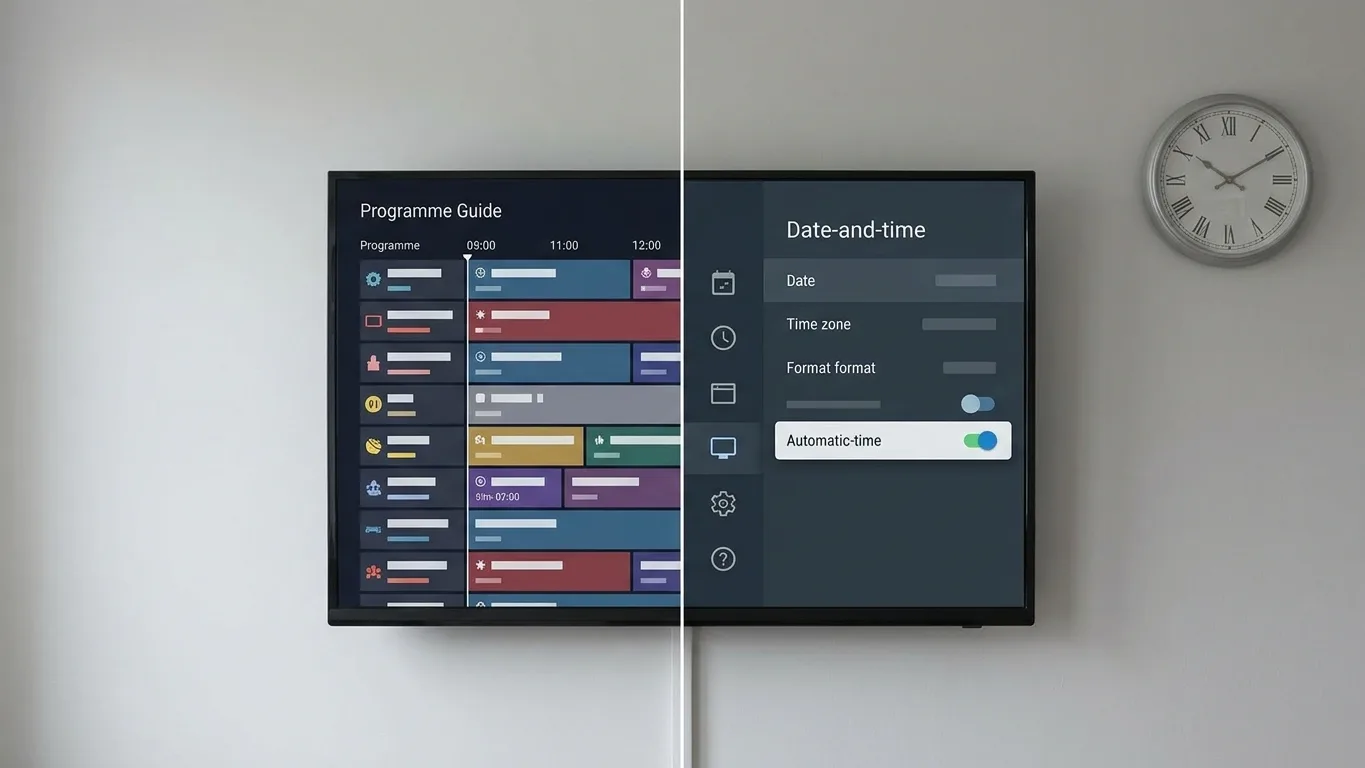
- Open the device settings — not the player's settings, but the TV's, box's or phone's.
- Find date and time.
- Set the time zone to Helsinki or Eastern European Time, not a fixed offset such as "GMT+2" or "UTC+3".
- Enable automatic time.
- Restart the player and check the guide.
The difference between a fixed offset and a named zone is the whole point. A named zone knows the daylight saving rules and shifts by itself; a fixed offset knows nothing and stays stuck. Always choose the named zone.
If the difference is not a whole hour
Sometimes the gap is two hours, or half an hour. Two hours suggests that both the time zone and daylight saving have been set manually and are being applied on top of each other. Half an hour is rare and usually means the player has its own separate EPG offset setting that has been left switched on. Look for EPG offset or time shift in the player settings and reset it to zero.
Fault 3 — The guide shows yesterday's programmes
The data exists but is out of date. This is a cache fault.
The player stores the downloaded guide in device memory so it does not have to fetch it on every launch. If a refresh fails — the network dropped briefly, the server was busy, the app was closed mid-download — the old version stays on screen.
The fix is straightforward:
- Force a programme data refresh from the player settings.
- If that does not help, clear the EPG cache from the same menu.
- If that still does not help, log out and back in.
When this is not a fault: the source typically refreshes its file once or twice a day. If you look at the guide in the small hours before that refresh, the tail end of the previous day is normally still showing. Only worry if the data is more than a day old.
If it happens every day
Repeated staleness suggests the automatic refresh never gets to run. The usual causes:
- The device is switched off at the mains. Some players refresh the guide in the background during standby, which cannot happen with the power cut.
- The app is always force-closed. An app left in the background refreshes; a force-closed one does not.
- Device storage is full. The new file will not fit, so the old one stays.
The last is common on cheap Android boxes with little internal storage. The effects of device choice are discussed in the IPTV box guide.
Fault 4 — Only some channels have data
Major channels show a guide, smaller ones do not. This is normal and usually not a fault at all.
Programme data is its own product. It is collected, maintained and licensed separately, and it does not cover every channel in the world. In practice:
- Major Finnish and Nordic channels — coverage is nearly always complete.
- Major international channels — generally complete.
- Small thematic and foreign speciality channels — often patchy or absent.
- Event-specific sports channels — rarely have advance listings, because the content is decided at short notice.
This is worth remembering when choosing a service too: a channel count tells you nothing about listings coverage. Two services can quote the same number of channels and differ completely in how many have a working guide. We covered how to read a line-up in our channels article.
If data is missing from a channel that should have it, report the channel name to support. It is fixable at the source, but only if someone says what is missing.
Fault 5 — The wrong programme on the wrong channel
The guide shows data, but it belongs to a different channel. A sports channel lists children's programming.
This is an identifier fault. The channel's identifier in the channel list and in the programme file do not match, or two channels share one identifier.
You cannot fix this yourself in an ordinary player — it is source data, not a setting on your device. The right action is to report:
- the channel name exactly as it appears in your list,
- what programme data is showing on it,
- when you noticed.
The correction is made at the source and appears after the next refresh. You can reach us through the contact page, and the most common questions are answered in the FAQ.
Fault 6 — The guide appears then disappears
The guide loads, displays correctly, and a few minutes or one restart later it is empty again.
This is almost always a memory problem. With a large channel list the programme file is big, and parsed into memory it takes several times more space. If the device does not have enough free memory, the operating system discards it.
What to do:
- Free up space. Remove apps you do not use. This is the most common and most effective fix.
- Close background apps before opening the player.
- Reduce the guide's range if the player has a setting for, say, two days of listings instead of seven.
- Hide categories you never watch. A smaller channel list means a smaller programme file.
- Consider changing device if this is a TV several years old or a very cheap box.
If the device is an older TV's built-in system, a separate box or stick often solves the problem outright — and costs less than a new television. The options are listed on the devices page.
A two-minute test: device, app or source?
If you would rather not work through six faults in order, this test usually points straight at the cause. It needs two devices or two apps.
Test 1 — a second app on the same device. Install another player on the same TV or phone and log in with the same credentials.
- The guide appears correctly → the fault is in the first app. Reinstall it or switch player.
- The guide is equally broken → go to test 2.
Test 2 — a second device. Log in with the same credentials on a phone or tablet, preferably on mobile data.
- The guide appears correctly → the fault is in the first device, almost always the time zone or memory.
- The guide is broken here too → the fault is at the source, and support needs to fix it.
Two tests, two minutes, and at the end you know whether to adjust settings or contact support. This is the same logic as diagnosing a stuttering picture, where a phone on mobile data bypasses the home network entirely — the method is described in full in the buffering guide.
Write the result down before contacting support. A report saying "the guide is empty in two different apps but works on my phone" saves the entire first round of investigation.
The guide across multiple devices
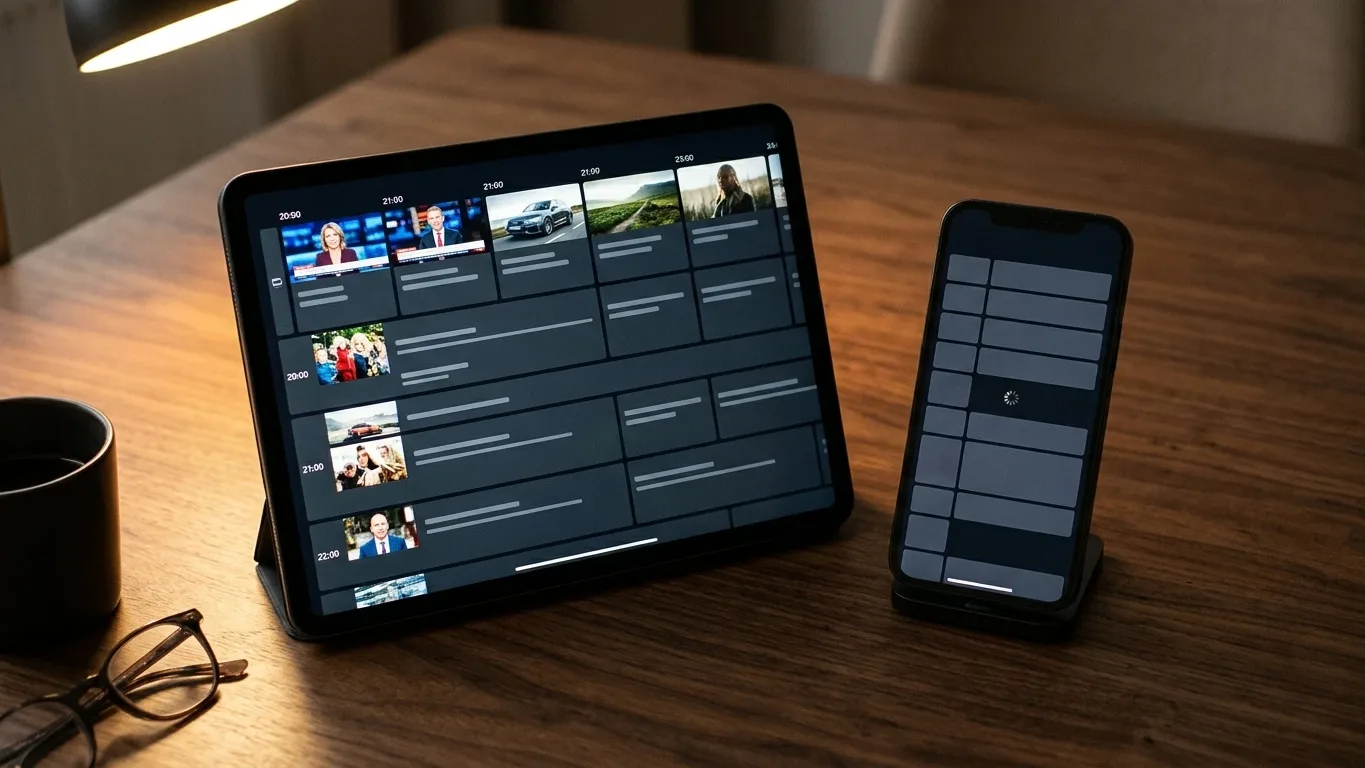
The same subscription's guide can look different on the living-room TV and the bedroom tablet, which confuses people.
The reason is that every device downloads and stores the guide separately. There is no shared cache. The TV's guide can be two days old while the tablet's refreshed this morning.
A few practical consequences follow:
- A refresh has to be done on each device. Fixing one does not fix the others.
- The time zone has to be checked on each device. The usual case is a TV set up years ago with a manually chosen zone, while the phone fetches its zone from the network automatically.
- Different devices may run different players, in which case the differences come from the app rather than the subscription.
If the guide works on one device and not another, the subscription is definitely fine. Comparing two devices is therefore the quickest way to rule the service out.
Sport and event channels are a special case
Sports channels have systematically weaker programme data than others, and that comes from the nature of the content rather than from the service.
Fixtures are confirmed late. Exact broadcast times for many leagues are decided weeks, sometimes days, ahead. The listings supplier publishes its file in advance, so last-minute changes do not make it in.
Broadcasts overrun. Extra time, a stoppage or a long trophy ceremony pushes everything after it back. The guide still shows the original times, because it was compiled beforehand.
Event channels exist only briefly. Many events get temporary channel slots with no permanent identifier at all. No programme data is ever created for them, even though the channel works perfectly.
The practical consequence: an empty guide on a sports channel is not a fault worth reporting — unless it is a permanent channel that previously had listings. For live sport, check the channel and kick-off time on the competition's own site rather than in the guide.
This is also why catch-up sometimes lands in the wrong place for sport. The cut point comes from the guide, and if a match overran, the ending is missing. Rewind from the start of the following programme and you will find the finish.
Three things to check at setup
Most of the faults in this article are preventable in the first five minutes. When setting the service up on a new device, do this straight away:
1. Set the time zone before your first login. Open the device settings, choose Helsinki as a named zone, and enable automatic time. This single step eliminates fault 2 permanently, across clock changes included.
2. Let the guide finish loading without interrupting it. The first download is the biggest, and an interrupted one leaves a partial cache that causes trouble for weeks. Open the guide once and scroll a few days ahead to confirm.
3. Check free storage if the device is old or cheap. Look at available space before installing. If there is less than a few gigabytes free, remove unused apps now rather than when the guide starts vanishing.
Beyond those, hide the categories you never watch. A smaller channel list means a smaller programme file, a faster download, less memory use — and a clearer guide.
Guide language and programme descriptions
One recurring question is not a fault at all: why are some descriptions in English when the channel is Finnish?
Programme data comes from wherever it is available. On one channel the source may be Finnish with Finnish descriptions; on another the same programme comes from an international source, so the title and description are in the original language. The player translates nothing — it displays the file's contents as they are.
That is why one guide can carry three languages side by side. It looks untidy but says nothing about a fault.
Some players have a guide language setting. It does not translate descriptions; it chooses which language version to show when the source offers more than one. If only one exists, the setting does nothing. This confuses people regularly: the option is there, but it changes nothing.
Likewise the clock format — 24-hour or 12-hour — comes from the device settings rather than the player. If the guide shows times in a format you are not used to, change it in the device's date and time settings.
Differences between apps
Players handle programme data differently, and the same subscription can look different in two apps.
| Feature | How it varies |
|---|---|
| Guide length | Some show a day, some a week |
| Refresh method | Automatic in the background, or manual only |
| Cache clearing | Its own option, or only via reinstalling |
| Time offset setting | Some have their own EPG offset, some do not |
| Memory use | Varies by several times over |
The practical consequence: if the guide fails in one player, try another before doubting the service. It is the fastest single test in this article, and it answers the question conclusively.
It is also worth confirming the app is genuine. Counterfeit copies with official-looking names are common, and they often handle programme data poorly. Identifying them is covered in the Smarters Pro article.
What not to do
Do not restart the router. The programme guide is not a network problem. The router has nothing to do with it.
Do not change service first. An empty guide is usually a device setting or an app cache. Both will follow you to the next service.
Do not enter an XMLTV address you found somewhere if the service supplies the guide with your credentials. Two overlapping sources produce duplicates and confuse the identifiers. If the guide is missing, a missing address is not the reason.
Do not set the time zone to a fixed offset. It works for six months and breaks at the clock change. Always use a named zone.
Do not judge service quality by the guide. Programme data and picture quality are different things, and neither tells you anything about the other.
Do not reinstall the app as your first move. Reinstalling clears the cache but also your favourites and settings, and it fixes only one of the six faults. Check the time zone and force a refresh first — both are quicker and neither loses anything.
Do not wait for a time zone problem to fix itself. It will not. A fixed offset stays wrong until the next clock change, when it is briefly right and then wrong again. This is the only fault here that appears to heal on its own — and does not.
Summary
The programme guide is a separate system running alongside the picture, and it can break on its own. That is why network fixes never help it.
A quick reference to the six faults:
- Completely empty → force a refresh, log in again, try another player.
- An hour out → set the device time zone to Helsinki, not a fixed offset. This is common right now because daylight saving ended on 25 October 2026.
- Yesterday's listings → clear the cache and check automatic refresh.
- Only some channels → usually normal; report the ones that are missing.
- Wrong programme on the wrong channel → identifier fault, fixed at the source.
- Appears then vanishes → running out of memory; free space or reduce the guide's range.
Two tests cover the large majority of cases: check the device time zone and try the same credentials in a second player. Each takes a minute, and together they tell you whether the fault is the device, the app or the source.
If you do contact support, a good report includes the device, the player name, the device's time zone setting, what the two-minute test showed, and one example channel name. With that, it is usually resolved on the first reply.
The fundamentals of how IPTV works in Finland are in the IPTV in Finland master guide, and if your real problem turns out to be a stuttering picture rather than the guide, continue to IPTV buffering.
You can test the service on your own device before paying: activation takes about a minute, there is no fixed-term contract, and there is a 7-day money-back guarantee. See the plans or just ask.